Buffering is the single biggest complaint among IPTV streaming service users in the UK. The spinning circle during live sports, the frozen frame mid-movie, the pixelated stream that drops to 480p during prime time — all of these are fixable. This guide covers every known cause and every working fix, ranked from the easiest 30-second solution to the most technical deep-dive.
Fix 1: Switch From Wi-Fi to Ethernet (Biggest Impact)
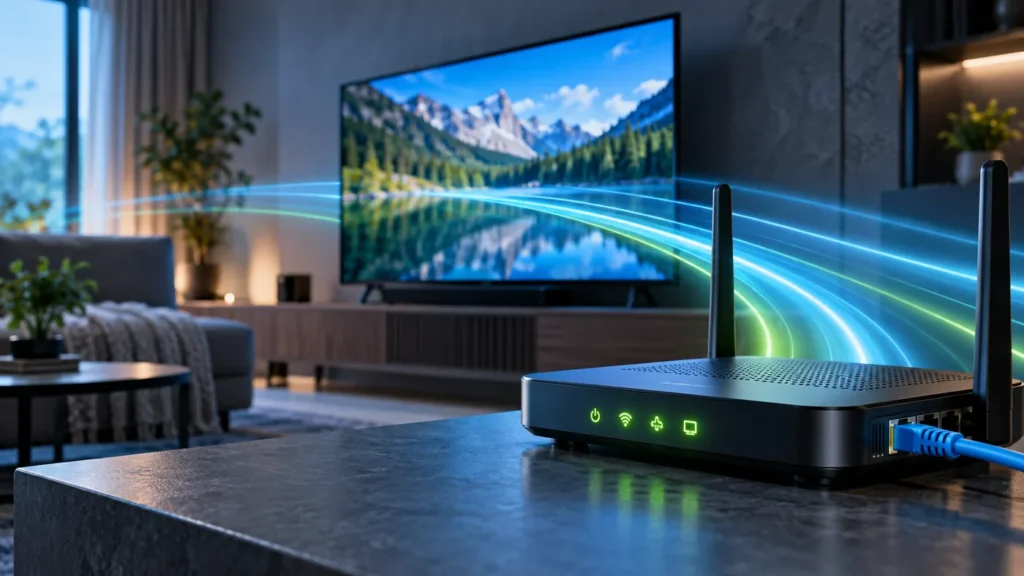
Wi-Fi signal fluctuations are the leading cause of IPTV streaming service buffering. Even a strong Wi-Fi signal has microsecond instabilities that cause live streams to pause and reload. A wired ethernet connection eliminates this entirely.
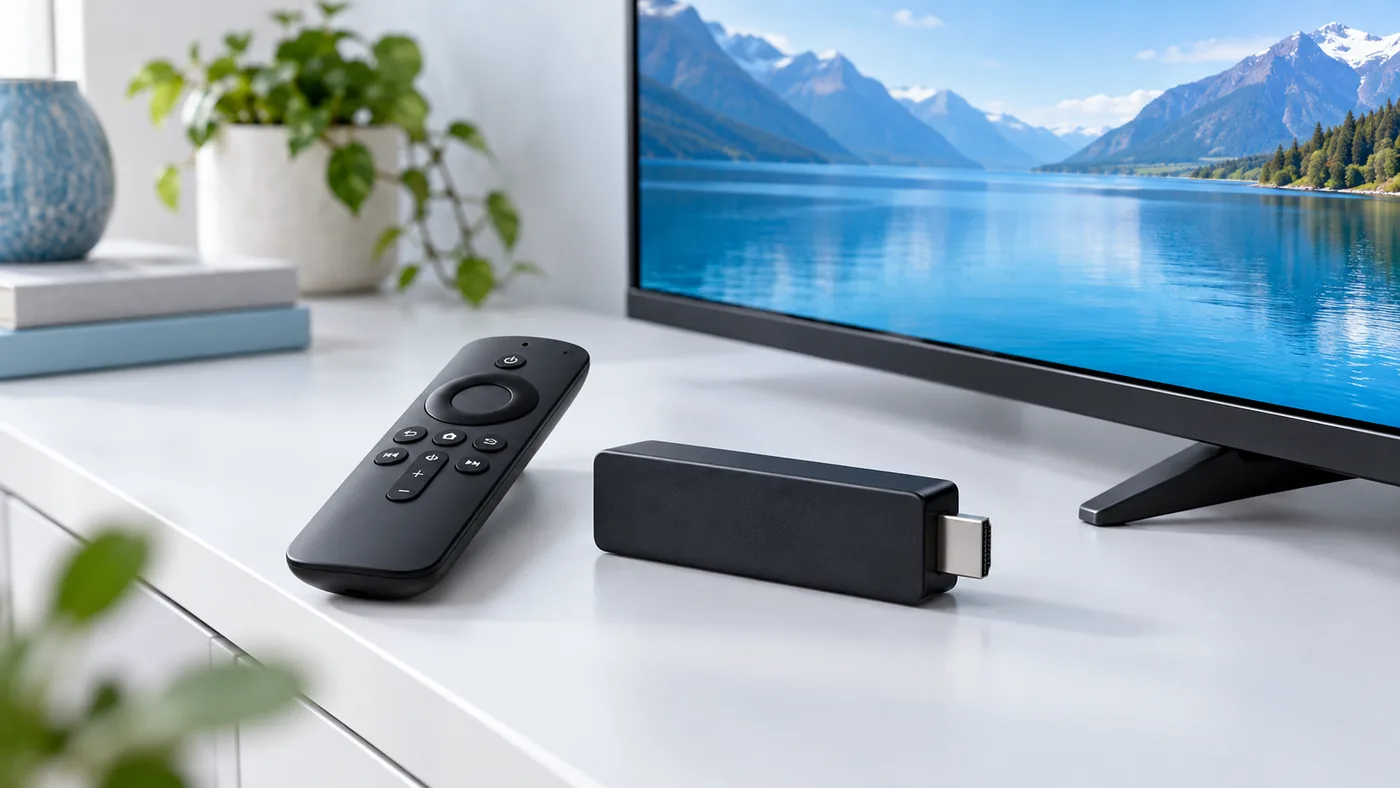
For Firestick users: purchase the Amazon Ethernet Adapter for Fire TV ($14.99) and connect directly to your router. New to IPTV on Firestick? Start with our Firestick setup guide to make sure your config is optimised from the start. For smart TV users: your TV has a built-in ethernet port — connect a standard ethernet cable from your TV to your router. This single fix resolves buffering in approximately 60 to 70 percent of cases.
Fix 2: Restart Your Router and Streaming Device
Unplug your router from the power outlet and your streaming device simultaneously. Wait a full 60 seconds — this clears DNS cache and resets all network connections. Plug your router in first, wait until all lights stabilize (30 to 45 seconds), then plug in your streaming device. Retest your IPTV streaming service. This basic reset resolves more buffering issues than any other single action.
Fix 3: Clear Your Device Cache
IPTV apps accumulate cached data that fills RAM and causes buffering and freezing. On Firestick: go to Settings → Applications → Manage Installed Applications → find your IPTV app → Clear Cache. On Samsung Smart TV: Settings → Support → Device Care → Manage Storage → find your IPTV app → Clear Cache. Restart your device after clearing cache.
Fix 4: Optimize Your IPTV App Settings
Most IPTV apps default to settings that do not match your device’s capabilities. In TiviMate, go to Settings → Player and set the player to ExoPlayer with Hardware Acceleration enabled. If you are new to TiviMate, our IPTV apps guide covers the full setup process. Set Buffer Size to 30 seconds for live TV. In IPTV Smarters Pro, go to Player Settings and enable Hardware Decoder. These settings significantly reduce buffering by matching the app’s processing demands to what your hardware can actually handle.
Fix 5: Change Your DNS Settings
Your ISP’s default DNS servers can slow down stream loading. Switching to faster public DNS resolves this in many cases. On Firestick: Settings → Network → select your connection → Advanced → change IP settings to Static → set DNS 1 to 1.1.1.1 (Cloudflare) and DNS 2 to 1.0.0.1. On most routers you can change DNS site-wide in the router admin panel under WAN or Internet settings.
Fix 6: Test a Different Server (Contact Your Provider)
If buffering only occurs at specific times (NFL Sundays, prime-time evenings), your IPTV streaming service provider’s servers are overloaded. Many providers offer multiple server options or backup lines. Contact support and ask for an alternative server URL or backup M3U playlist. If your provider cannot offer this, it is a sign they are overselling server capacity — a fundamental quality problem no device fix can solve. Compare reliable alternatives in our IPTV streaming services UK guide.
Fix 7: Reduce Stream Quality
If your internet connection is slower than 25 Mbps or fluctuates during peak hours, reducing stream quality eliminates buffering. In TiviMate: Settings → Player → set Max Bitrate to a lower value. In most IPTV apps you can switch from HD to SD versions of channels. A stable SD stream is always preferable to a buffering HD stream.
Fix 8: Use a VPN to Bypass ISP Throttling
Some US internet service providers throttle streaming traffic during peak hours. If your speed test shows full speeds but your IPTV streaming service buffers every evening, ISP throttling is likely the cause. A VPN encrypts your traffic so your ISP cannot identify it as streaming and cannot selectively slow it down. ExpressVPN and NordVPN both have native apps for Firestick and provide consistent results against throttling.
Buffering Fix Summary
| Fix | Time Required | Cost | Impact |
|---|---|---|---|
| Switch to ethernet | 5 minutes | $14.99 adapter | Very High |
| Restart router and device | 2 minutes | Free | High |
| Clear app cache | 3 minutes | Free | High |
| Optimize app settings | 10 minutes | Free | Medium-High |
| Change DNS settings | 5 minutes | Free | Medium |
| Contact provider for backup server | 15 minutes | Free | Medium-High |
| Reduce stream quality | 2 minutes | Free | Medium |
| Use a VPN | 10 minutes | $3–$8/month | Medium |
Frequently Asked Questions
Why does my IPTV streaming service only buffer during sports?
Sports events cause traffic spikes that overload underpowered IPTV streaming service servers. Budget providers with inadequate infrastructure fail during exactly these peak moments. If sports-time buffering persists after trying the fixes above, your provider’s servers are the limiting factor — no device optimization will fix a provider-side problem.
Does a faster internet plan stop IPTV buffering?
Sometimes, but not always. If your current speed is already above 25 Mbps for a single stream, upgrading your plan will not reduce buffering caused by Wi-Fi instability, device RAM limitations, or provider server overload. Fix the most likely causes first before paying for more speed.
Should I switch providers to stop buffering for good?
If Fix 6 confirms your current provider is the bottleneck, yes. See our best IPTV streaming services guide for tested alternatives, or our cheap IPTV streaming services guide if cost is a factor. Switching is straightforward — our complete cord cutting guide walks you through it.
Why does IPTV buffer on my phone but not my TV?
Phones typically connect to the 5GHz Wi-Fi band, which offers more bandwidth than the 2.4GHz band older smart TVs and Firesticks use. Switch your streaming device to 5GHz Wi-Fi in your device network settings, or connect via ethernet, to match phone performance. Full setup guides for Android and Apple TV users are also available.
nn
Buffering is often a provider issue, not just a network issue. If your current service consistently underperforms, it may be time to switch. See our list of the best IPTV streaming services in the UK — tested specifically for stream stability and uptime.
If buffering persists no matter what you try, the issue may be your provider rather than your setup. Compare options in our best IPTV streaming services guide, or test a different service with our free 24-hour IPTV trial — no credit card required.